
Event day reference
Set it clean. Open it on time. Keep it simple. Keep it safe.
This SOP is for the Madera photobooth using a dedicated iPad and Snappic at weddings. Designed for a mostly self-serve guest experience with light staff monitoring and fast troubleshooting.
Operating Standard
- Photobooth is fully set before ceremony, but stays unplugged until activation time.
- Open after ceremony. Close 1 hour before event end.
- The guest experience should feel super simple: tap, capture, send, done.
- Booth is mostly self-serve, but a team member keeps an eye on it.
- Kids must be monitored closely and rotated out when they dominate the booth.
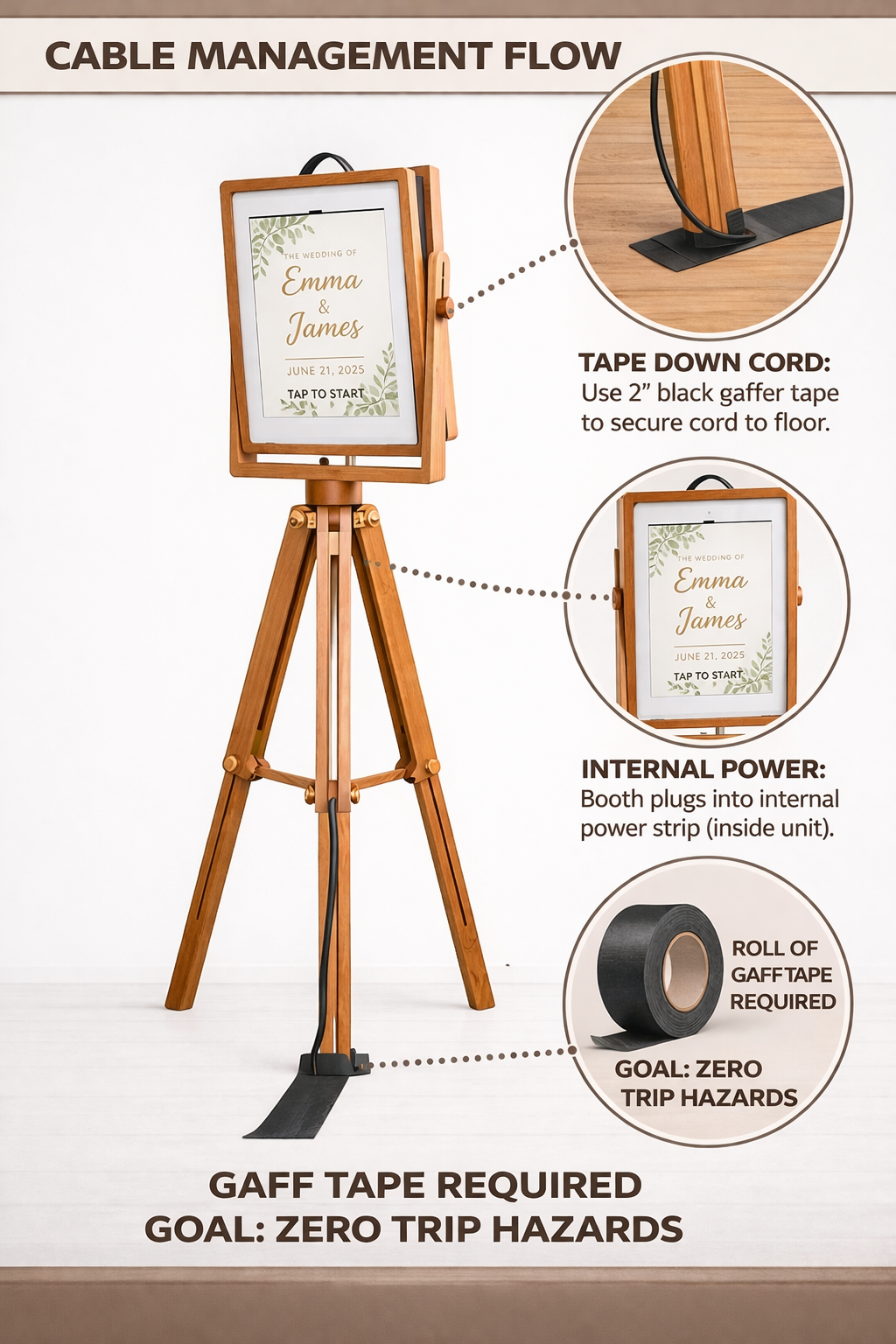
- All floor cables must be taped. Goal: zero trip hazards.
Pre-Event Standard
Do this before you leave and before guests arriveBefore You Leave
- Bring the Madera booth unit, tripod, built-in light assembly, and dedicated iPad.
- Bring the backdrop kit: bases, poles, crossbar, and fabric.
- Bring the vintage suitcase props and confirm the props are event-ready.
- Bring one extension cord packed inside the booth case so the unit is self-sufficient for next use.
- Bring a second extension cord when the venue layout may require flexibility.
- Bring gaff tape. This is required, not optional.
- Remove the iPad for transport and hand it to the lead.
- Confirm the iPad is charged, updated, logged in, and dedicated to booth use only.
- Load the event artwork: start screen, overlay, and any event branding.
Pro tip: Pack the extension cord back into the booth case at the end of every event. That one habit prevents missed gear at the next job.
Venue Planning Standard
Space
- Reserve a 10′ x 10′ footprint on the floorplan.
- Place the booth near the dance floor for visibility and energy.
- Place it against a wall so the backdrop has a clean home.
Power
- Plan for an outlet within 25 feet of the booth base.
- The booth plugs into an internal power strip inside the unit.
- Do not energize the booth until it is time to open.
Props + Table Standard
- Props live in the vintage suitcase near the booth area.
- A 4′ table is ideal for props, especially at 36″ height or taller.
- If a table is not available, use the prop box stand.
- Keep props tidy and close to the booth, not scattered through the room.
Setup Standard
Goal: under 30 minutesStart Here Every Time
⚠ Default setup
- Confirm the 10′ x 10′ area and identify the nearest outlet.
- Set the backdrop first so the booth angle can be finalized cleanly.
- Assemble and level the Madera booth tripod.
- Insert and secure the dedicated iPad.
- Load the event start screen and confirm the booth is in pre-open mode.
- Run the extension cord to the booth area, but do not plug the booth in yet.
- Route the cable cleanly and tape all exposed floor runs with gaff tape.
- Stage the props and tidy the guest area.
- Stow the large professional case out of sight during the event.
Backdrop Setup
Backdrop Specs
- Pipe and drape with collapsible poles
- Maximum height: 8′
- Maximum width: 8′
- Heavy bases should be self-sustaining
Backdrop Rules
- Center it behind the booth.
- Keep the fabric visually clean and even.
- Store the case away from guest traffic and out of photos.
Power + Cable Management
⚠ Critical safety rule
- The light turns on when the booth is plugged in.
- Do not plug the booth in before activation time.
- Run the power cable straight down from the booth whenever possible.
- Tape all floor cable runs with gaff tape. No loose cable should be exposed in a guest path.
- Keep the taped path neat and intentional, not zig-zagged across the floor.
Goal: the booth looks intentional, tidy, and safe. No guest should notice a messy cable run.
Power standardOne cord powers the booth. Plug in at opening time only.
Tape standardUse black gaff tape and secure the cable to the floor immediately.
Guest viewKeep the iPad screen branded, simple, and readable from a few feet away.
Ready Before Ceremony, Open After Ceremony
- The entire booth should be physically set before the ceremony begins.
- The iPad should show a branded pre-open screen: “Photo Booth Opens After Ceremony.”
- Since the booth light comes on when powered, keep the unit unplugged until go-time.
- At activation time: plug in, confirm the app is live, test one session, and then leave the guest-facing start screen visible.
Visual Setup Reference
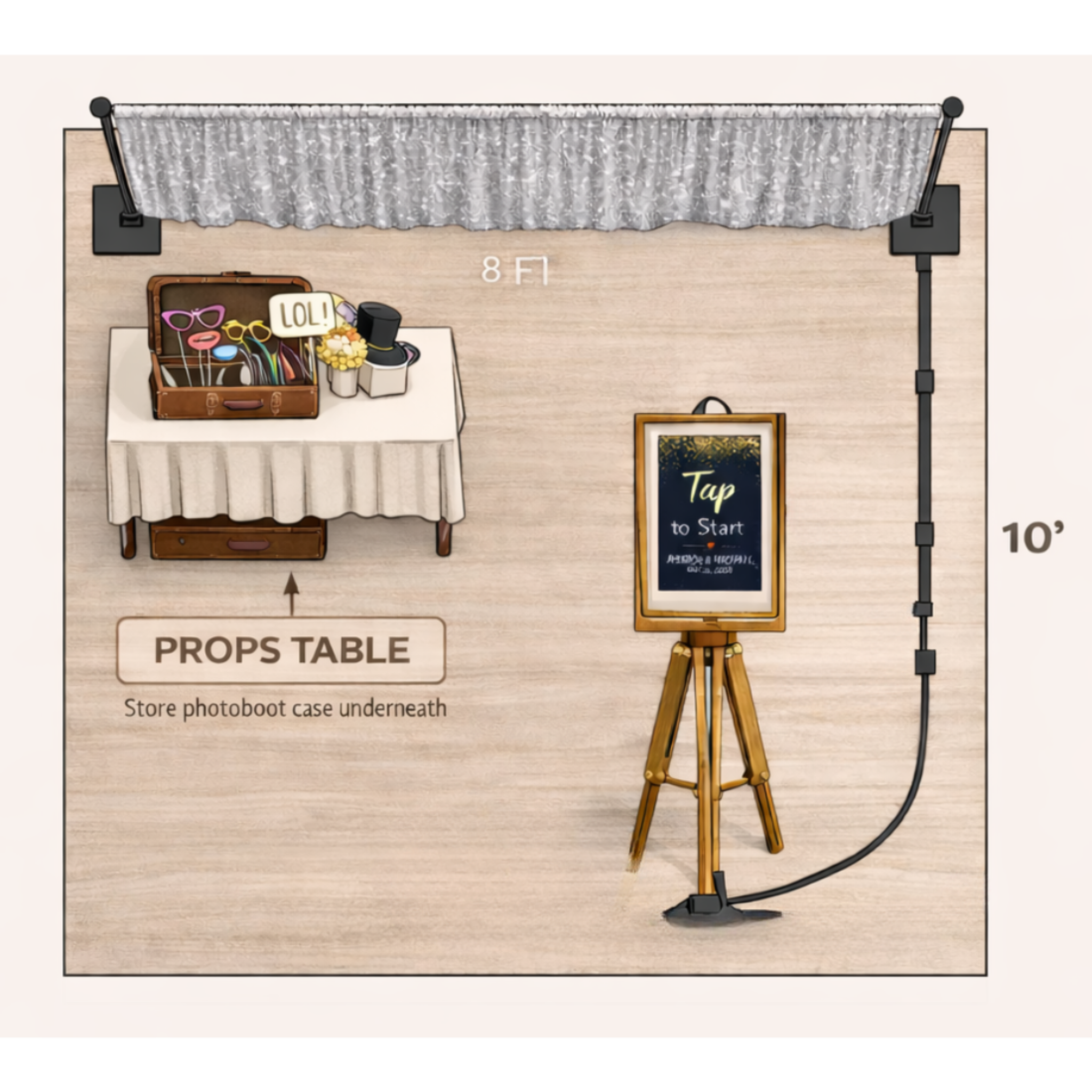
Layout and placement standardsProps TableUse a 4-foot rectangular table with linen. Store the photobooth case underneath.
Booth PositionPlace the booth slightly forward from the backdrop for proper framing and guest spacing.
Power + TapeRun cable along the wall when possible. Tape fully only where guests walk.
Case StorageStore the large case under the props table — out of sight and out of photos.
10′ × 10′ footprint: backdrop against wall → booth centered in front → props table to one side → power cord along wall and taped. Zero loose cables in the guest path.
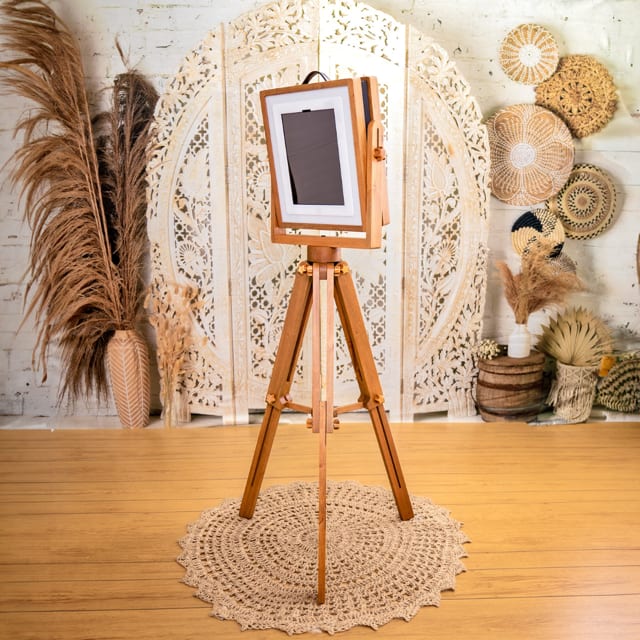
Reference Photo 1 — Madera Booth
Base reference for booth style and presentation standard.
Reference Photo 2 — Madera Booth
Base reference for booth style and presentation standard.
Floor Layout — 10′ × 10′ Setup
Base reference for booth style and presentation standard.
Snappic Best-Practice Setup
Built for a simple wedding guest flowSnappic Experience Standard
Simple guest flow
1. Tap screenBranded event start screen
2. Capture3–4 photos or one short boomerang set
3. ReviewQuick preview only
4. SendText or email to guest
Best practice: For weddings, start with one simple capture mode. Complexity lowers usage.
Recommended App Configuration
- Use the dedicated iPad only for booth operation.
- Keep the home screen clean and notifications silenced.
- Use Guided Access or kiosk-style locking so guests cannot leave the app.
- Default to one capture path instead of making guests choose between too many formats.
- Enable both text and email sharing.
- Use one event-branded start screen and one event-branded overlay.
Pre-Open Screen Standard
- Before opening, use a message such as: “Photo Booth Opens After Ceremony.”
- Once the ceremony is over, switch to the normal guest start screen: “Tap to Start.”
Branding Standard
- Use couple names and wedding date on the start screen or photo overlay.
- Keep branding subtle and elegant — not overwhelming the photo.
Live Operation
Monitor lightly, step in when neededAttendant Role
- The booth is mostly self-serve — do not hover.
- Keep the booth tidy, the props contained, and the line moving naturally.
- Check in periodically throughout the night.
- Be visible enough to help but relaxed enough to let guests enjoy it.
Kids + Prop Management
⚠ High-attention zone
- Kids must be closely monitored at all times.
- If kids dominate the booth, politely rotate them out so others can enjoy it too.
- Props may travel briefly to the dance floor. Allow short use, then ask for them back.
- Return props to the table or suitcase throughout the night so the booth still looks inviting.
Opening + Closing Flow
Opening
- After ceremony, plug in the booth.
- Confirm the light, iPad, and app are live.
- Run one quick test capture and sharing check.
- Switch to the guest-facing “Tap to Start” screen.
Closing (1 hour before event end)
- Unplug first.
- Begin packing props and backdrop immediately.
- Keep the area tidy while breakdown happens around guests.
Troubleshooting
Solve it fast and quietlyApp Freezes
- Close and reopen the app.
- If needed, restart the iPad.
- Reconfirm Guided Access / kiosk lock after restart.
Guests Are Confused
- Say: “Just tap the screen and it will guide you.”
- Keep the start screen simple and clear.
- One tap should get them into the experience.
Sending Fails
- Retry once.
- Try email if text is failing.
- Check venue connectivity if both sharing methods stall.
Photos Are Off-Center
- Re-center the booth to the backdrop.
- Check if the tripod shifted or was bumped.
- Keep guests in the ideal capture zone, not too close.
Booth Gets Bumped
- Reset tripod stance and re-level.
- Confirm the iPad is secure.
- Check cable path and tape after any shift.
Kids Keep Touching Settings
- Keep the device locked into booth mode (Guided Access).
- Politely redirect kids to the start screen.
- Involve an attendant to manage high-traffic moments.
Teardown + Reset
Goal: under 30 minutesEnd of Night Procedure
- At closing time, unplug the booth.
- Pack props first so they stop walking around the room.
- Take down and pack the backdrop carefully.
- Pack the booth and tripod carefully.
- Return one extension cord to the booth case.
- Remove and hand off the iPad to the lead.
Critical Pack-Out Warning
⚠ Do not lose the small pieces
- Account for every piece during breakdown.
- iPad, cables, props, backdrop components, and the extension cord must all be accounted for.
- Do a final area check before leaving the venue.
Reset Standard for Next Event
- Booth case should leave the event with one extension cord inside.
- Props should be returned to the suitcase neatly.
- Leave the system ready for the next operator, not half-reset.