
Set it up right. Keep the sound clean. Watch the transitions. Stay close to the mixer.
This SOP is for DJ Lite events using Spotify playlists and the Yamaha STAGEPAS 400BT. Written for assistants who need a fast, searchable operating manual in the field.
Operating Standard
- Wired connection is the default. Bluetooth is backup only.
- The DJ Lite operator stays at the mixer during ceremony cues, formalities, and dancing.
- The mixer lives off-camera whenever possible.
- Keep music transitions clean and calm. This is playlist execution, not live DJing.
- Do not let volume overpower the room. Target roughly 90–95 dB max.
- When something goes wrong, solve it fast and quietly.
Pre-Event Standard
Do this before you leave and before guests arriveBefore You Leave
- Bring the Yamaha STAGEPAS 400BT, both speakers, mixer, power cord, and both speaker cables.
- Bring wired microphones and confirm the XLR cables are packed.
- Bring the 1/8″ aux cord and any laptop adapters needed.
- Bring a laptop charger and extension/power strip if needed.
- Download all Spotify playlists for offline use.
- Confirm Spotify settings: Crossfade 12 seconds and Gapless Playback ON.
- Silence notifications. Turn on Do Not Disturb / Focus mode.
- Confirm the couple labeled playlists correctly and in order.
- Review the timeline so you know exactly when music changes happen.
Playlist Standard for Couples
DJ Lite depends on the couple building playlists correctly. Review naming before the event and flag anything confusing early.
Before Guests Arrive
- Set speakers on stands.
- Place speakers roughly 20 feet apart when space allows.
- Place the mixer on a small table, off-camera whenever possible.
- For ceremony, set up as far from the center of the altar as practical while still keeping clean cable runs.
- Run cables cleanly and safely. Tape down trip hazards.
- Do a full sound check: music, mic, and volume walk.
- Confirm the laptop output is going to the wired connection, not internal speakers.
Setup Standard
Default method every timeStart Here Every Time
- Power everything off first.
- Connect both speakers to the mixer using the included speaker cables only.
- Plug the mixer power cord into the mixer, then into power.
- Connect the laptop with the 1/8″ aux cord to the stereo input you are using.
- Connect the wired microphone to Channel 1 or 2.
- Set all white LEVEL knobs to zero.
- Set the red MASTER LEVEL knob to the start position.
- Set EQ controls to center / flat.
- Set the mic channel switch correctly: MIC for microphones, LINE for music devices.
- Turn on the sound source first, then the mixer last.
Default Starting Knob Positions
Music Channel
- Music channel LEVEL: start around 12 o’clock
- EQ: center / flat
- Use LINE input only
Microphone Channel
- Mic LEVEL: start around 10–11 o’clock
- EQ: center / flat
- Reverb: off for most weddings
Speaker and Mixer Placement
- Speakers face the audience area, not each other.
- Keep microphones behind the front line of the speakers whenever possible.
- Do not point a speaker directly at a microphone position.
- Keep the mixer ventilated. Do not cover vents with fabric or decor.
- Keep speaker cables separate from mic/input cables when possible.
When the Operator Must Stay Put
- Stay at the mixer: ceremony, processional, recessional, grand entrance, first dance, parent dances, speeches, bouquet toss, dancing.
- Can step away briefly: long playlist blocks like cocktail hour or dinner, once levels are confirmed and the room is stable.
- Return before the next formal cue. Do not be caught away from the mixer when a transition is coming.
Mixer Quick Reference
STAGEPAS 400BT key settingsSTAGEPAS 400BT Mixer — Visual Reference
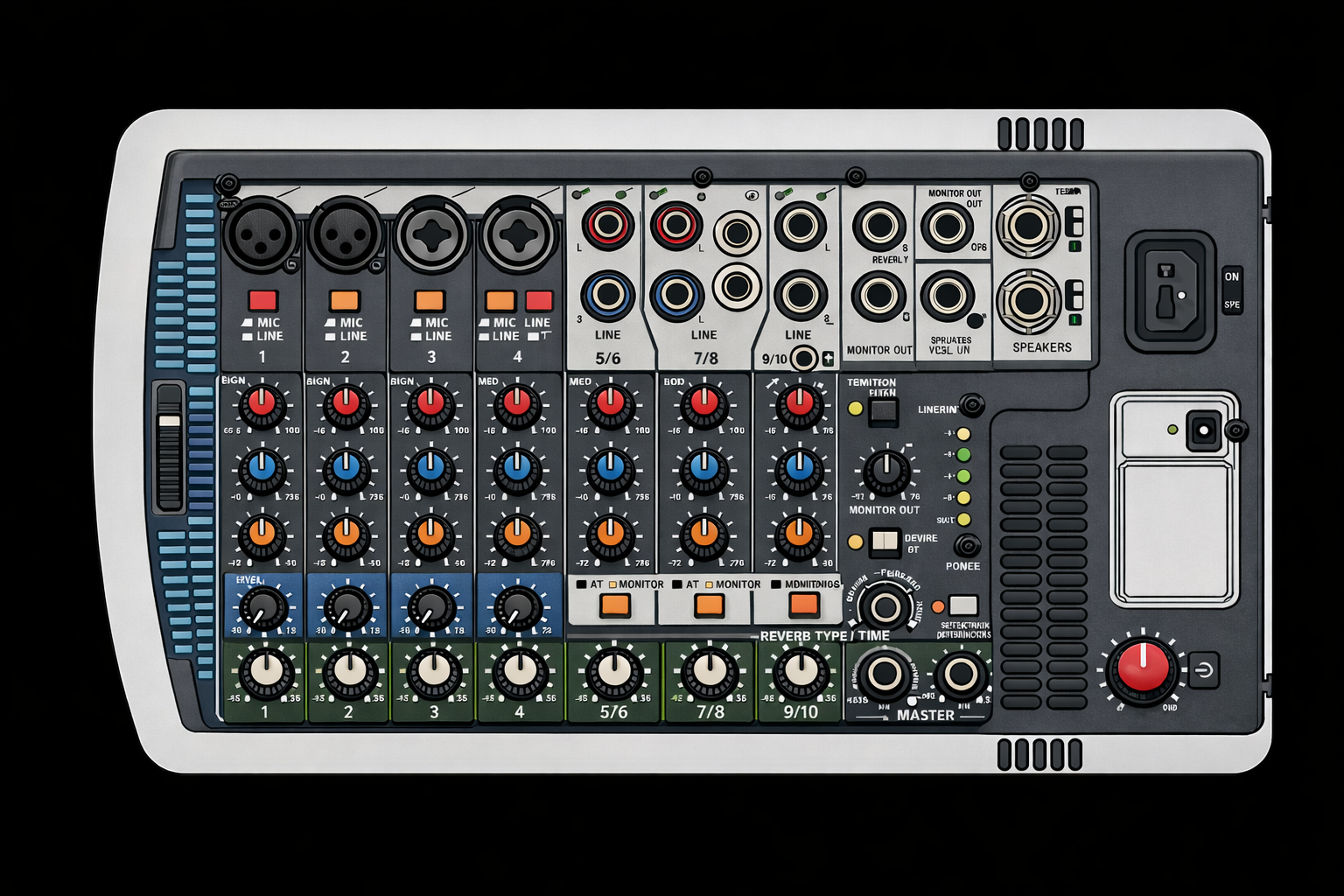
Operating Standard
How to run the event cleanlyMusic Playback Standard
- Use the wired laptop connection as the first choice.
- Confirm the correct Spotify playlist before hitting play.
- For dance music, play in the couple’s listed order.
- Do not take guest requests unless the couple has explicitly approved that.
- Fade out formal songs only when the couple requested it.
- Watch the room and the volume. Loud enough to feel fun, not loud enough to hurt.
Volume Standard
- Volume should support the moment.
- Ceremony and speeches must be clear first. Volume is secondary.
- Cocktail and dinner should allow conversation.
- Dancing can be bigger, but keep the room under control.
- Use an Apple Watch or similar dB app to check you stay around or below 90–95 dB.
Bluetooth Standard
- Bluetooth is backup only.
- Use it only if the wired connection fails or cannot be used.
- If Bluetooth is in use, keep the device nearby and in Airplane Mode with Bluetooth turned back on.
- Remember Bluetooth on the STAGEPAS 400BT feeds channels 7/8.
Microphone Standard
Clear speech beats loud speechHow to Set Up a Wired Mic
- Plug the mic into Channel 1 or 2.
- Set the channel switch to MIC.
- Start low and bring the channel up slowly while someone speaks normally.
- Leave mic EQ flat unless there is a clear reason to adjust.
- Reverb is usually off for vows, toasts, and announcements.
How to Brief Guests on Mic Use
- Physically show them where to hold it if needed.
- If they hold it at chest level, guests will barely hear them.
- If multiple people are speaking, reset the mic position each time.
Mic Non-Negotiables
- Do not let speakers stand directly in front of the speakers while using the mic.
- Do not let anyone point the mic toward a speaker.
- Do not slam the mic on a table or tap the grille.
- Do not crank the mic channel to fix bad mic technique. Coach the speaker first.
Preventing Feedback
Most feedback is preventableHow to Prevent Feedback
- Keep mics behind the front plane of the speakers.
- Point speakers away from the mic position.
- Start with flat EQ.
- Do not max out channel volume or master volume.
- Keep reverb off or very low on speech mics.
- Ask guests to hold the mic close. Distance causes people to overcompensate with gain.
If Feedback Starts
- Lower the mic channel slightly.
- Check whether the speaker is standing in front of or too close to a speaker.
- Coach them to hold the mic closer to their mouth.
- Reduce or remove reverb.
- Lower master slightly only if needed.
Troubleshooting
Fix the most likely problem firstNo Sound at All
- Check power to the mixer.
- Check that the mixer was turned on after the laptop/source.
- Check that the correct speaker cables are fully seated.
- Check that the laptop is sending audio to the wired output, not internal speakers or HDMI.
- Check that Spotify is actually playing and not paused.
- Check the channel LEVEL and MASTER LEVEL.
- Check the MIC/LINE switch position for the channel in use.
- If still dead, test with a second device or second cable.
Music Playing But Not Loud Enough
- Raise laptop volume.
- Confirm the source is plugged into the expected channel.
- Raise that channel gradually.
- Raise master gradually.
- Make sure you are not accidentally using a mic setting.
- Walk the room — sometimes it sounds quieter at the mixer than in the coverage area.
Mic Is Too Quiet
- Confirm the channel switch is set to MIC.
- Coach the speaker to hold the mic close.
- Raise the mic channel slowly.
- Raise master only if the rest of the system also needs more volume.
- Swap the mic or cable if the problem continues.
Sound Is Distorted
- Lower the source device volume slightly.
- Lower the channel level slightly.
- Check whether the MIC/LINE switch is wrong.
- Return EQ closer to center.
- If the system cuts out and returns, it may be protecting itself from overload — back the level down.
Bluetooth Backup Not Working
- Use wired first if at all possible.
- If pairing, select STAGEPAS 400BT on the device.
- Keep the device within about 10 meters.
- Disconnect any other device that may already be paired and connected.
- After turning Bluetooth off, wait a few seconds before turning it back on.
- Turn off Wi-Fi on the phone if Bluetooth audio is cutting in and out.
System Shuts Down or Acts Hot
- Check that vents are not blocked.
- Move decor, linen, jackets, or bags away from the mixer.
- Let it cool briefly, then restart.
- Reduce level once back on.
Backup / Alternate Ceremony System
Context noteION iPA161
The ION iPA161 is available as an alternate or ceremony-only system when the full STAGEPAS setup is not ideal. Refer to the equipment list for availability. Confirm with the Lead if this system is being used instead of or alongside the STAGEPAS.
Source Reference
Official manual + internal style referenceManual + Style Source
This SOP is based on the official Yamaha STAGEPAS 400BT Owner’s Manual and adapted for DMWTB event standards. Consult the official manual for full specifications, wiring diagrams, and technical specs.
This document is an internal operating guide — not a replacement for the manufacturer manual in situations requiring technical troubleshooting beyond the field level.